
Your site could be bleeding traffic right now, and you might not even know it. A single misplaced line in your robots.txt file can block Google from crawling your most important pages. Worse, these errors often go undetected for months while your rankings slowly disappear.
Robots.txt mistakes killing SEO include blocking critical resources, using incorrect syntax, disallowing entire sections by accident, and failing to test changes before deployment. These configuration errors prevent search engines from properly crawling and indexing your content, resulting in lost rankings and organic traffic. Regular audits and proper testing can prevent these costly mistakes from damaging your site’s visibility.
Blocking CSS and JavaScript Files
Google needs to see your pages the way users do. That means crawlers must access your CSS and JavaScript files to render pages properly.
Many webmasters still block these resources in their robots.txt file. This practice stems from outdated SEO advice from 2010 when blocking resources was thought to save crawl budget.
Here’s what happens when you block these files:
- Google cannot determine if your page is mobile friendly
- The crawler cannot see content loaded by JavaScript
- Your site may be classified as having a poor user experience
- Rankings drop across mobile search results
Check your robots.txt file right now. Look for lines like these:
Disallow: /wp-includes/
Disallow: /*.js$
Disallow: /*.css$
These directives prevent Google from accessing essential rendering resources. Remove them immediately.
Google’s John Mueller has stated multiple times that blocking CSS and JavaScript hurts your ability to rank. The search engine needs full access to understand your page layout and content.
“If we can’t fetch CSS or JavaScript files because of robots.txt, we can’t see the page like a normal user. This means we might not understand what’s on the page or how it works.” John Mueller, Google Search Advocate
Using Wildcard Patterns Incorrectly
Wildcards make robots.txt powerful, but one wrong character can block thousands of pages.
The asterisk (*) matches any sequence of characters. The dollar sign ($) marks the end of a URL. Mixing these up creates disasters.
Consider this common mistake:
Disallow: /*?
This directive blocks every URL containing a question mark. That includes all paginated content, filtered product pages, and tracking parameters. Your entire ecommerce category structure could vanish from search results overnight.
Here’s another dangerous pattern:
Disallow: /*.pdf
Without the dollar sign, this blocks any URL containing “.pdf” anywhere in the path. A page at /pdf-guides/seo-tips/ gets blocked even though it’s not a PDF file.
The correct syntax would be:
Disallow: /*.pdf$
Test every wildcard pattern before deploying. Use Google Search Console’s robots.txt tester to verify which URLs get blocked.
| Pattern | What It Blocks | Intended Use |
|---|---|---|
| Disallow: /*? | All URLs with query parameters | Block specific parameter patterns only |
| Disallow: /*.pdf | Any URL containing .pdf | Should use /*.pdf$ to target file extensions |
| Disallow: /admin* | Paths starting with /admin | Correct for blocking admin sections |
| Disallow: *session= | URLs with session parameters anywhere | Correct for blocking session tracking |
Accidentally Blocking Your Entire Site
This sounds impossible, but it happens more often than you’d think. A single typo can remove your entire website from Google.
The most common version looks like this:
User-agent: *
Disallow: /
Those two lines tell every search engine to stay away from every page on your site. Your rankings will disappear within days.
Sometimes this happens during development. A developer adds a blanket disallow to prevent indexing of a staging site. Then that robots.txt file gets pushed to production by mistake.
Other times, someone adds an extra space or character that changes the meaning entirely:
User-agent: *
Disallow: / admin/
That space after the slash blocks everything. The intended target was just the admin directory.
Follow these steps before making any robots.txt changes:
- Download your current robots.txt file as a backup
- Make changes in a text editor, not directly on the server
- Test the new file using Google Search Console’s robots.txt tester
- Verify that important pages remain crawlable
- Deploy during low traffic hours
- Monitor Search Console for crawl errors immediately after deployment
Set up monitoring alerts for sudden drops in crawled pages. This gives you early warning if something goes wrong.
Forgetting About Case Sensitivity

Robots.txt directives are case sensitive for the path portion of URLs. This trips up even experienced SEO professionals.
Your site might serve content at both /Blog/ and /blog/. If you write:
Disallow: /blog/
You’ve only blocked the lowercase version. The uppercase /Blog/ remains accessible to crawlers.
This creates duplicate content issues. Google sees two versions of the same content and must choose which to rank. You lose control over which version appears in search results.
The solution depends on your site structure. If your CMS serves the same content regardless of case, block all variations:
Disallow: /blog/
Disallow: /Blog/
Disallow: /BLOG/
Better yet, implement proper canonical tags and 301 redirects at the server level. Make your site consistently use one case pattern, then match that pattern in robots.txt.
Misunderstanding Crawl Delay Directives
The Crawl-delay directive seems helpful. Set a delay between requests to reduce server load, right?
Not exactly. Google ignores this directive completely. Bing and other search engines interpret it differently, leading to unpredictable results.
Some webmasters set aggressive delays:
User-agent: *
Crawl-delay: 10
This tells supporting crawlers to wait 10 seconds between requests. On a site with 10,000 pages, that’s 27 hours just to crawl your content once. Your fresh content won’t get indexed for days or weeks.
Different search engines handle crawl delay in different ways:
- Google ignores it entirely and uses Search Console settings instead
- Bing interprets the value as seconds between requests
- Yandex may interpret it as requests per second
- Smaller crawlers might respect it or ignore it
Instead of using Crawl-delay, control crawl rate through official channels. Google Search Console lets you adjust crawl speed directly. This method works reliably and gives you real control.
For aggressive bots that hammer your server, block them entirely or use server-level rate limiting. Don’t rely on robots.txt for traffic management.
Blocking Important Pagination and Filters
Ecommerce sites and blogs often have hundreds of filtered views and paginated results. Blocking these pages seems logical to avoid duplicate content penalties.
This logic is backwards. Google needs to crawl these pages to understand your site structure and find all your content.
Consider a product category with 200 items spread across 10 pages. If you block pagination:
Disallow: /*?page=
Google can only see the first 20 products. The other 180 never get discovered or indexed. Your potential traffic just dropped by 90%.
The same applies to filtered views. A clothing site might have filters for size, color, and price. These combinations help users find products and create entry points from long-tail searches.
Blocking filter URLs means blocking potential ranking opportunities:
- “red running shoes under $50” might only appear on a filtered page
- “women’s size 8 winter boots” requires size filtering to display
- “budget laptops with 16GB RAM” needs multiple filter combinations
Use these strategies instead:
- Implement rel=”canonical” tags pointing to the main category page
- Use rel=”next” and rel=”prev” for pagination (though Google has deprecated this)
- Allow crawling but use meta robots noindex for truly thin pages
- Ensure paginated and filtered pages have unique, valuable content
Let Google see your full site structure. Use canonical tags to indicate preferred versions without blocking crawler access.
Failing to Update After Site Changes
Your robots.txt file isn’t a set-it-and-forget-it configuration. Every site migration, redesign, or structural change requires a robots.txt review.
Common scenarios that break existing robots.txt rules:
- Moving from HTTP to HTTPS (robots.txt must exist on the HTTPS version)
- Changing CMS platforms (new URL structures need different rules)
- Adding a blog or resource section (old rules might block new content)
- Implementing a CDN (asset URLs change completely)
- Launching international versions (each subdomain needs its own file)
After a site migration, one major retailer lost 40% of their organic traffic. The culprit? Their robots.txt file still blocked the old URL structure. The new URLs were technically open, but critical category pages used similar patterns that got caught by outdated rules.
Create a robots.txt audit checklist for major site changes:
- Document current robots.txt rules and their purpose
- Map old URL patterns to new URL structures
- Identify which old rules still apply
- Write new rules for changed sections
- Test the new file against both old and new URL samples
- Deploy and monitor crawl statistics for 48 hours
- Keep the old file backed up for 30 days
Set a calendar reminder to review your robots.txt file quarterly. Even without major changes, small updates accumulate. A test campaign might add temporary parameters. A developer might block a new admin tool. These small changes add up to big problems.
Testing Your Robots.txt Configuration
Theory doesn’t matter if your implementation is broken. Test every change before it goes live.
Google Search Console provides a built-in robots.txt tester. This tool shows exactly how Googlebot interprets your file. Use it every single time you make changes.
The testing process takes less than five minutes:
- Open Google Search Console
- Navigate to the robots.txt tester (under Legacy tools)
- Paste your new robots.txt content
- Enter specific URLs you want to test
- Click “Test” to see if each URL is allowed or blocked
- Fix any unexpected results before deploying
Test these specific URL types:
- Your homepage
- Important category pages
- Individual product or article pages
- CSS and JavaScript files
- Image directories
- XML sitemap location
- Common filtered and paginated URLs
Don’t just test that important pages are allowed. Verify that pages you want blocked actually get blocked. A syntax error might accidentally allow crawler access to sensitive areas.
Consider using third-party tools for additional verification. Screaming Frog SEO Spider can crawl your site while respecting robots.txt rules. This shows you exactly what search engines can and cannot see.
Create a staging environment for major robots.txt changes. Test the full crawl behavior before pushing to production. This extra step prevents catastrophic mistakes from affecting your live site.
Protecting Your SEO Investment
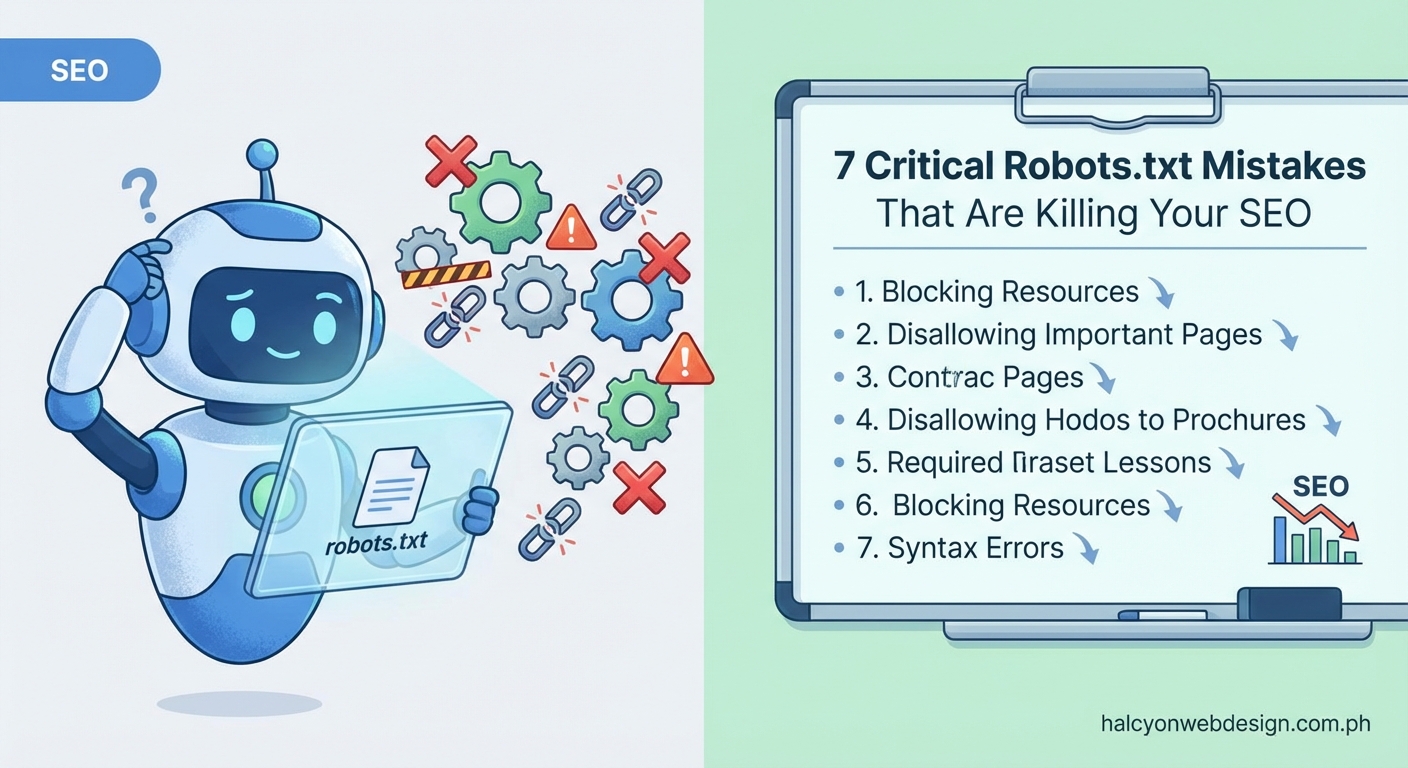
Robots.txt mistakes killing SEO are completely preventable. You now know the seven most dangerous configuration errors and how to avoid them.
Start with an audit of your current robots.txt file today. Check for blocked resources, wildcard errors, and outdated rules. Test your configuration using Google Search Console. Set up monitoring to catch problems before they damage your rankings. Your organic traffic depends on getting this right.