
Your website is live, traffic is flowing, and then someone sends you a screenshot: a big red warning saying your site isn’t secure. Your heart sinks. SSL certificate errors can scare away visitors, tank your search rankings, and make your business look careless.
The good news? Most SSL certificate errors are fixable in minutes once you know what’s causing them. You don’t need to be a server expert or hire expensive consultants. This guide walks you through the most common SSL problems, explains why they happen, and shows you exactly how to resolve them.
SSL certificate errors usually stem from expired certificates, domain mismatches, untrusted certificate authorities, mixed content, or incomplete certificate chains. Each error displays specific browser warnings that point to the root cause. Fixing these issues involves renewing certificates, updating DNS records, forcing HTTPS across your site, or reinstalling certificates with proper intermediate files. Most problems can be resolved in under an hour with the right troubleshooting steps.
Understanding SSL certificate errors
SSL certificates create encrypted connections between browsers and servers. When something breaks in that chain, browsers display warnings to protect users from potential security risks.
These errors aren’t just technical annoyances. They directly impact your bottom line. Studies show that over 80% of users abandon websites that display security warnings. Search engines also penalize sites with SSL problems, pushing you down in rankings.
Certificate errors happen for predictable reasons. Your certificate might have expired. The domain name on the certificate might not match your actual domain. Your hosting provider might have configured something incorrectly. Or you might be serving some content over HTTP while the rest uses HTTPS.
The error messages look scary, but they’re actually helpful. Browsers tell you exactly what’s wrong if you know how to read the warnings.
Five SSL certificate errors you’ll actually encounter
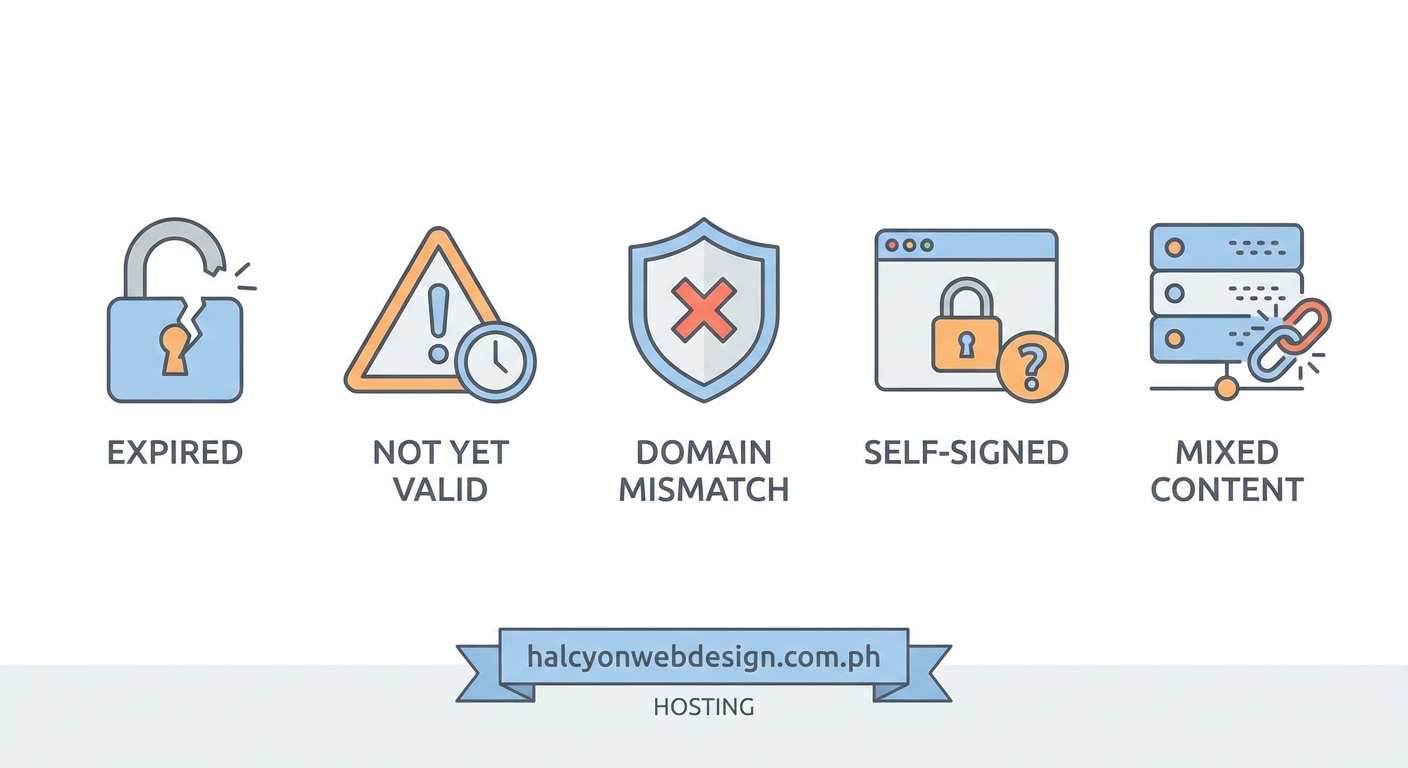
Expired certificate error
This is the most common problem. SSL certificates have expiration dates, typically lasting one year. When the certificate expires, browsers refuse to trust it.
The warning usually says “Your connection is not private” or “NET::ERR_CERT_DATE_INVALID.”
Why it happens:
You forgot to renew before expiration. Your auto-renewal failed. Your payment method on file expired. Or your hosting provider changed renewal processes without notifying you.
How to fix it:
- Log into your hosting control panel or certificate provider account
- Navigate to the SSL/TLS certificate section
- Click the renewal or reissue button for your domain
- Complete any verification steps (email, DNS, or file upload)
- Wait for the new certificate to activate (usually 5 to 30 minutes)
- Clear your browser cache and test your site
If you manage certificates manually, you’ll need to download the new certificate files and install them on your server. Most managed hosting providers handle this automatically once you complete the renewal.
Set calendar reminders 30 days before your certificate expires. Better yet, enable auto-renewal through your certificate provider. This single step prevents 90% of expiration errors.
Domain name mismatch error
This error appears when the domain on your SSL certificate doesn’t match the domain users are visiting. The browser warning typically says “NET::ERR_CERT_COMMON_NAME_INVALID.”
Why it happens:
You bought a certificate for www.yoursite.com but users visit yoursite.com without the www. You moved to a new domain but kept the old certificate. You’re using a subdomain that wasn’t included in the certificate.
How to fix it:
Check what domains your certificate covers. You can use SSL checker tools online or check your certificate details in your browser (click the padlock icon, then view certificate information).
If your certificate doesn’t cover all the domains you need:
- Purchase a new certificate that includes all necessary domains
- Consider a wildcard certificate if you use multiple subdomains
- Install the new certificate on your server
- Update any hardcoded URLs in your site configuration
For WordPress sites, make sure your site URL settings match your certificate. Go to Settings > General and verify both WordPress Address and Site Address use the same format (with or without www) that your certificate covers.
Certificate not trusted error
Browsers maintain lists of trusted certificate authorities. If your certificate comes from an authority browsers don’t recognize, they display warnings like “NET::ERR_CERT_AUTHORITY_INVALID.”
Why it happens:
You’re using a self-signed certificate instead of one from a recognized authority. Your certificate authority isn’t in browser trust stores. Or you’re missing intermediate certificates that link your certificate to a trusted root.
How to fix it:
Self-signed certificates work fine for development environments, but never use them on public websites. Get a certificate from a recognized authority instead. Many hosting providers include free certificates from Let’s Encrypt, which all major browsers trust.
If you already have a certificate from a legitimate authority but still see trust errors, you’re probably missing intermediate certificates:
- Contact your certificate provider and request the intermediate certificate files
- Download the complete certificate chain (your certificate plus intermediates)
- Install all certificates in the correct order on your server
- Restart your web server to apply changes
The certificate chain usually includes three files: your domain certificate, one or more intermediate certificates, and a root certificate. Your server needs all of them properly configured.
Mixed content error
This happens when your main page loads over HTTPS but some resources (images, scripts, stylesheets) still load over HTTP. Browsers block these insecure resources or display warnings.
The console typically shows “Mixed Content” warnings and lists which resources are causing problems.
Why it happens:
You recently installed SSL but didn’t update all your URLs. Your theme or plugins still reference HTTP resources. You’re embedding content from external sites that don’t support HTTPS. Or your content management system is configured to use HTTP URLs.
How to fix it:
First, identify which resources are loading over HTTP. Open your browser’s developer console (F12) and look for mixed content warnings. They’ll show you exact file paths.
For WordPress sites, choosing the right WordPress plugin for SSL management can automate most fixes. Really Simple SSL and similar plugins scan your site and update URLs automatically.
Manual fixes:
- Update your site URL in settings to use HTTPS
- Search your database for HTTP URLs and replace them with HTTPS versions
- Update hardcoded URLs in theme files and templates
- Configure your CDN to serve resources over HTTPS
- Add a Content Security Policy header that blocks mixed content
For images and media files, make sure your media library URLs use HTTPS. Most content management systems have plugins or settings to bulk update these.
Incomplete certificate chain error
Your certificate needs to link back to a trusted root certificate through intermediate certificates. If any link is missing, browsers can’t verify the chain and display errors.
Why it happens:
Your hosting provider or certificate installer only uploaded your domain certificate without the intermediates. Your server configuration points to the wrong certificate files. Or the certificate files got corrupted during upload.
How to fix it:
Test your certificate chain using online SSL checker tools. They’ll tell you if intermediates are missing and which ones you need.
To fix the chain:
- Download the complete certificate bundle from your certificate provider
- Locate your server’s SSL configuration file (usually in /etc/nginx/ or /etc/apache2/)
- Update the certificate paths to point to the complete chain file
- Verify file permissions are correct (typically 644 for certificate files)
- Restart your web server
Most certificate providers give you a single bundle file that includes everything. Use that instead of trying to concatenate individual files manually.
Troubleshooting steps that actually work
When you encounter an SSL error, follow this systematic approach:
Start with browser testing:
Test your site in multiple browsers. If only one browser shows errors, the problem might be browser-specific settings or cached certificates. Clear your browser cache and SSL state, then test again.
Check certificate validity:
Use online SSL checker tools to scan your certificate. These tools verify expiration dates, domain matches, certificate chains, and trusted authorities. They’ll give you a detailed report of what’s wrong.
Review server logs:
Your web server logs contain detailed error messages that browsers don’t show. Check error logs for SSL handshake failures, certificate loading errors, or configuration problems.
Verify DNS settings:
Make sure your domain points to the correct server. If you recently moved hosting or changed DNS, propagation can take up to 48 hours. During this time, some users might hit the old server with an outdated or missing certificate.
Test with diagnostic commands:
For server access, use OpenSSL commands to test certificates:
openssl s_client -connect yourdomain.com:443 -servername yourdomain.com
This shows exactly what certificate the server presents and whether the chain is complete.
Common mistakes that cause SSL errors
| Mistake | Why It Breaks SSL | Prevention Strategy |
|---|---|---|
| Forgetting to renew certificates | Expired certificates trigger browser warnings | Enable auto-renewal and set calendar alerts |
| Installing certificates on wrong server | Users hit a server without valid SSL | Update DNS records to point to correct server |
| Missing intermediate certificates | Breaks trust chain to root authority | Always install complete certificate bundles |
| Hardcoding HTTP URLs | Creates mixed content warnings | Use protocol-relative or HTTPS URLs everywhere |
| Mismatched www/non-www domains | Certificate doesn’t cover accessed domain | Get certificates that cover both versions |
| Self-signed certificates in production | Browsers don’t trust self-signed certificates | Use certificates from recognized authorities |
| Incorrect file permissions | Server can’t read certificate files | Set certificate files to 644, private keys to 600 |
| Outdated server software | Old servers don’t support modern SSL protocols | Keep server software updated regularly |
Forcing HTTPS across your entire site
Installing an SSL certificate isn’t enough. You need to force all traffic to use HTTPS. Otherwise, users might still access HTTP versions of pages, and search engines might index both versions.
Using .htaccess (Apache servers):
Add this code to your .htaccess file in your site root:
RewriteEngine On
RewriteCond %{HTTPS} off
RewriteRule ^(.*)$ https://%{HTTP_HOST}%{REQUEST_URI} [L,R=301]
This redirects all HTTP requests to their HTTPS equivalents with permanent 301 redirects.
Using nginx configuration:
Add this to your nginx server block:
server {
listen 80;
server_name yourdomain.com www.yourdomain.com;
return 301 https://$server_name$request_uri;
}
Using WordPress plugins:
Really Simple SSL and similar plugins handle redirects automatically. They also fix mixed content issues and update your database URLs.
After implementing redirects, test thoroughly:
- Visit your site using HTTP explicitly
- Check that you’re redirected to HTTPS
- Verify all pages redirect, not just the homepage
- Test with and without www
- Check that redirects use 301 (permanent) status codes
Preventing future SSL certificate errors
Set up monitoring before problems occur. Many hosting providers offer SSL monitoring that alerts you when certificates are about to expire or when errors are detected.
Automation strategies:
- Enable auto-renewal through your certificate provider or hosting panel
- Use Let’s Encrypt with automated renewal scripts (certbot handles this)
- Set up monitoring alerts 30 days before expiration
- Document your SSL setup process for team members
- Keep a checklist of all domains and subdomains that need certificates
Regular maintenance tasks:
Check your certificates quarterly even if auto-renewal is enabled. Verify that:
- All domains are covered
- Expiration dates are correct
- Certificate chains are complete
- No browser warnings appear
- HTTPS redirects work properly
If you manage multiple sites, maintain a spreadsheet tracking certificate expiration dates, providers, and renewal methods. This prevents surprises when certificates expire.
When to get professional help
Most SSL certificate errors are fixable with the steps above. But some situations need expert assistance:
- Your server configuration is complex with load balancers or CDNs
- You’re running enterprise applications with specific SSL requirements
- Certificate errors persist after trying all troubleshooting steps
- You need wildcard or multi-domain certificates with special configurations
- Your organization has compliance requirements (PCI DSS, HIPAA)
Professional help is worth it when downtime costs more than the consulting fee. A few hours of expert time can save days of frustration.
When choosing the right WordPress hosting plan, look for providers that include SSL management, automatic renewals, and technical support. This prevents most certificate problems before they start.
SSL errors fixed means trust restored
SSL certificate errors feel intimidating, but they’re usually straightforward to resolve. Expired certificates need renewal. Domain mismatches need proper certificate coverage. Trust errors need complete certificate chains. Mixed content needs URL updates. Each error points you toward its own solution.
The key is catching problems early through monitoring and automation. Set up alerts, enable auto-renewal, and test your site regularly. These simple habits prevent 95% of SSL issues before users ever see them.
Your website’s security directly affects user trust, search rankings, and conversion rates. Keeping your SSL certificates healthy isn’t optional anymore. It’s as essential as keeping your site online. Take 30 minutes today to verify your certificates, set up monitoring, and enable auto-renewal. Your future self will thank you when renewal time comes around.